
Download Digg Toolbar – Free Firefox Extension for Real‑Time Digg Alerts
Overview – Stay on Top of Your Favorite Diggs Without Leaving Firefox
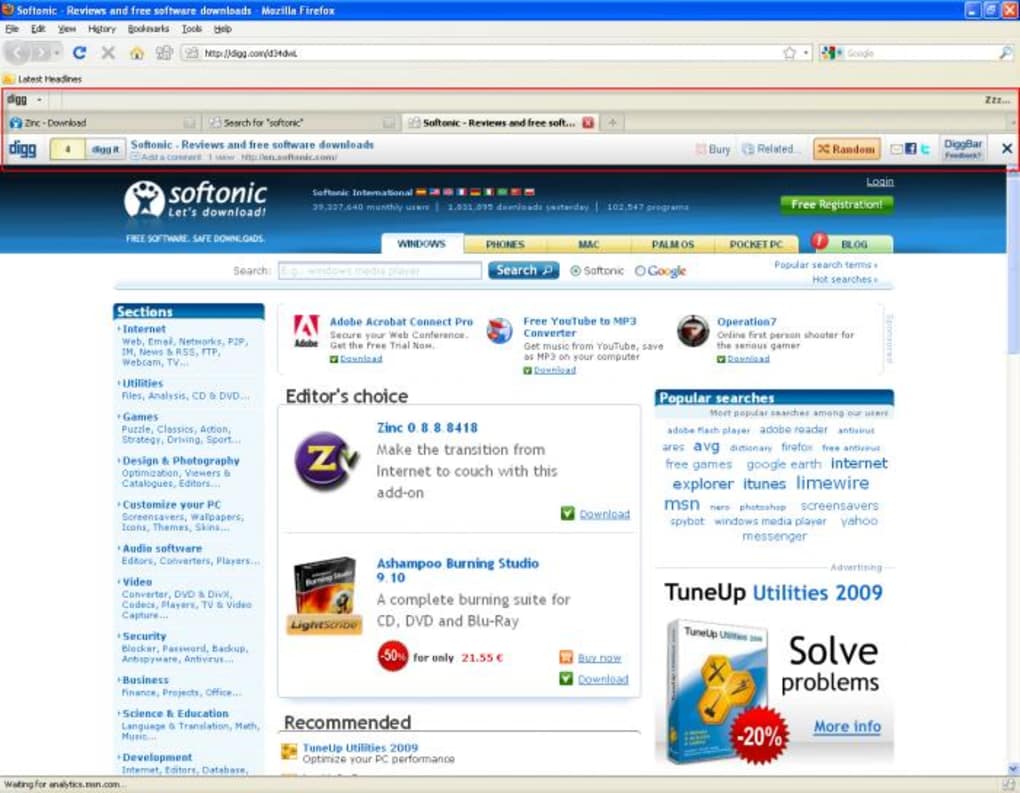
The Digg Toolbar is a lightweight, free extension designed specifically for Firefox users who live and breathe Digg. If you’re the kind of person who checks Digg multiple times a day, the toolbar turns the browser itself into a real‑time notification hub. Once installed, a subtle bar appears at the top of the browser window, offering instant access to the topics you care about, a quick toggle for pausing alerts, and a streamlined view of friends’ activity. The interface is intentionally unobtrusive: the main toggle sits on the far left, the pause button on the far right, and a secondary notification icon snugly placed at the bottom right. This design philosophy ensures that you stay informed without the toolbar becoming a visual distraction.
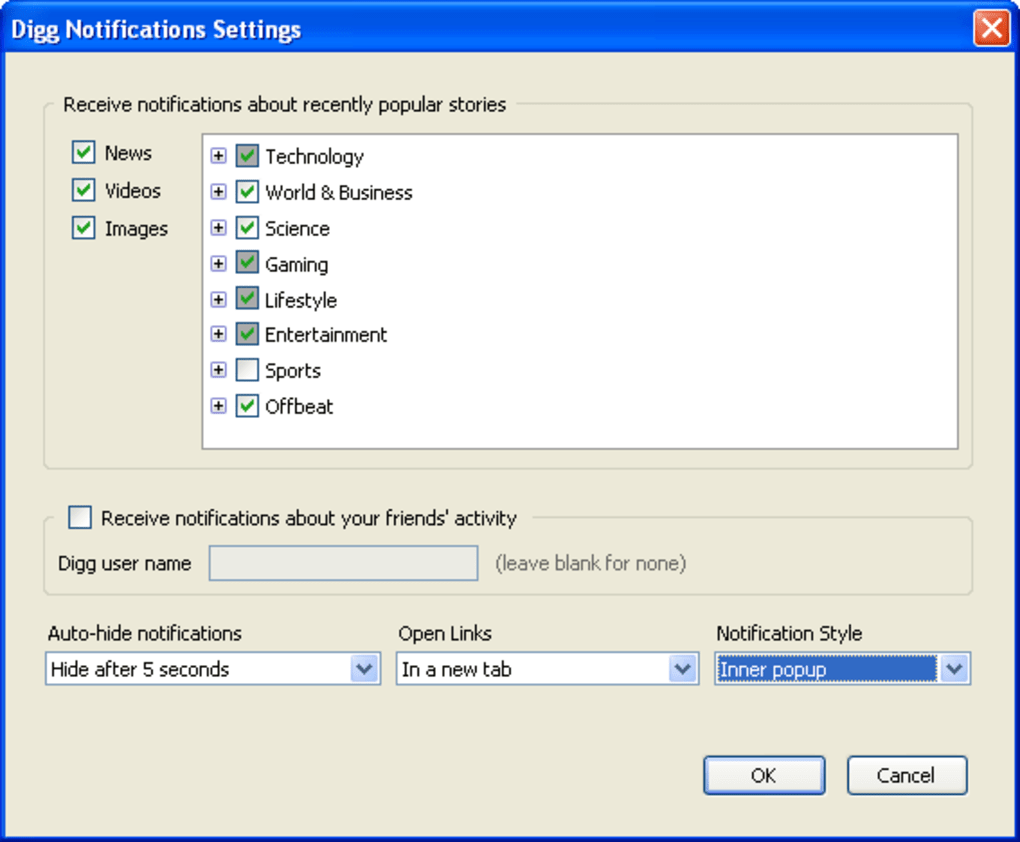
During the initial setup, Digg Toolbar walks you through a simple preferences wizard. You can pick from a comprehensive list of categories—technology, entertainment, sports, politics, and many niche interests—so the alerts you receive are truly personalized. The settings are not locked in stone; you can return to the preferences page at any time to add or remove topics, adjust the notification style (pop‑up, banner, or silent), and decide whether to display your friends’ Digg activity. This level of customization makes the extension feel like a natural extension of the Digg website rather than a third‑party add‑on.
While the toolbar excels at delivering timely notifications, it does have a limitation: it does not replace the Digg website for submitting new Diggs. If you discover an article that isn’t already on your Digg list, you’ll still need to visit Digg.com to “Digg” it manually. Nevertheless, the convenience of having alerts, topic filters, and a quick view of friends’ actions all in one place often outweighs this minor inconvenience for power users. In short, Digg Toolbar provides a centralized, secure, and free way to monitor your Digg universe without constantly hopping between tabs or windows.
Key Features – What Makes Digg Toolbar Worth Installing
- Real‑time notifications: Instant alerts for new Diggs that match your chosen topics, keeping you ahead of the curve.
- Customizable topic list: Over 50 categories to select from, with the ability to add or remove topics at any time.
- Friends activity feed: A compact view of what your Digg friends are sharing, fostering community engagement.
- Pause and resume alerts: One‑click control to silence notifications during meetings or focus sessions.
- Non‑intrusive UI: A slim toolbar that integrates seamlessly with Firefox’s native interface.
- Multiple notification styles: Choose between pop‑up bubbles, banner messages, or silent mode.
- Secure login handling: Uses Digg’s OAuth tokens, ensuring that your credentials are never stored locally.
- Automatic updates: The extension checks for updates daily, delivering bug fixes and new features without user intervention.
- Lightweight performance: Minimal CPU and memory footprint, so your browsing speed remains unaffected.
- Free and open source: No hidden fees, no premium tiers – the toolbar is completely free to download and use.
Installation & Usage – Step‑by‑Step Guide to Get You Up and Running
Getting Digg Toolbar up and running is a straightforward process that takes less than five minutes, even for users who are not tech‑savvy. Follow these steps for a smooth installation:
- Visit the official add‑on page: Open Firefox and navigate to the Mozilla Add‑ons website. Search for “Digg Toolbar” or use the direct URL provided on the Digg community page.
- Click “Add to Firefox”: Press the green “Add to Firefox” button. A permission dialog will appear, outlining the data the extension will access (primarily Digg’s API for notifications).
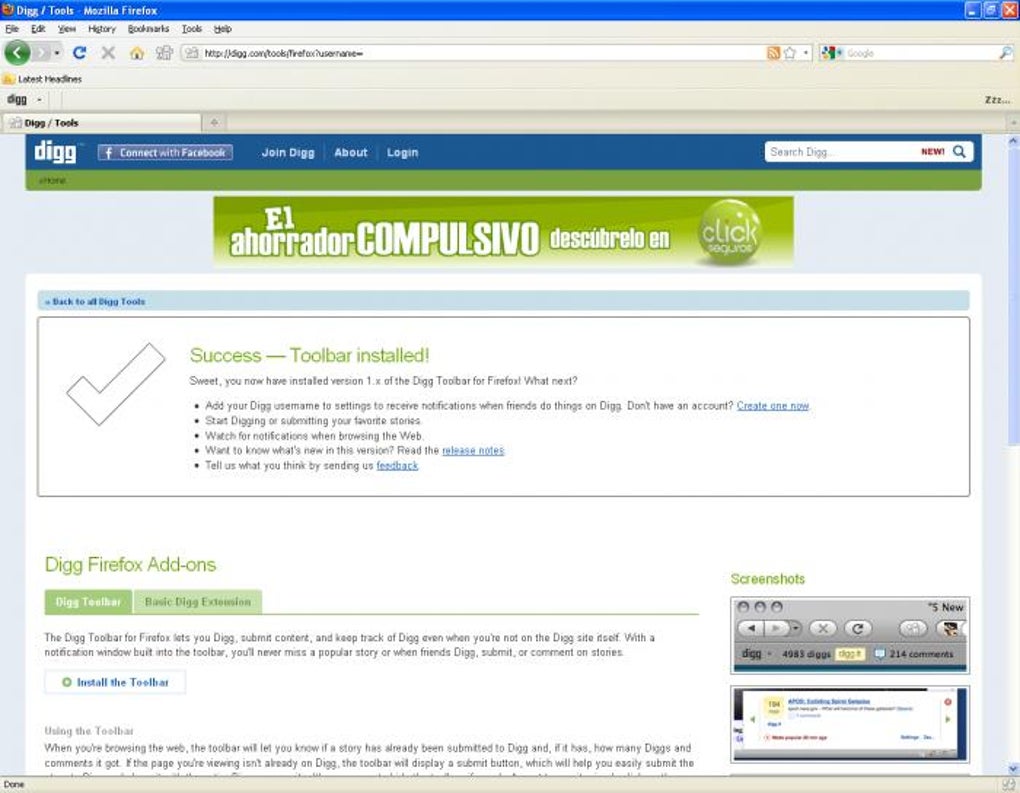
- Confirm installation: Click “Add” in the dialog, then “Okay, Got It” once the toolbar appears in the top‑right corner of the browser.
- Run the setup wizard: The first time you open the toolbar, a preferences window pops up. Here you’ll select your favorite categories, decide whether to see friends’ activity, and choose your notification style.
- Sign in with Digg: Use the OAuth login button to securely connect the toolbar to your Digg account. This step creates a token that the extension uses for future notifications; your password is never stored locally.
- Fine‑tune settings: After the initial setup, you can revisit the preferences by clicking the gear icon on the toolbar. Adjust topics, change the notification layout, or toggle the pause button whenever you need a distraction‑free browsing session.
- Start receiving alerts: Once configured, the toolbar will begin displaying real‑time Digg notifications. Click any notification to jump directly to the article on Digg.com, where you can read, comment, or share.
The toolbar also integrates with Firefox’s native bookmarking system. If you find a Digg article you love, you can right‑click the notification and select “Bookmark” to save it directly to your Firefox bookmarks folder. For power users, the extension supports keyboard shortcuts: Ctrl+Shift+D opens the preferences panel, while Ctrl+Shift+P toggles the pause function. These shortcuts can be customized in the toolbar’s advanced settings page.
Troubleshooting is minimal, but if you encounter issues, the toolbar provides a built‑in “Help” button that links to a detailed FAQ and a community forum. Most common problems—such as missed notifications or login failures—are resolved by clearing the browser cache, re‑authorizing the Digg token, or updating the extension through the Mozilla Add‑ons manager. Because updates are automatic, you’ll rarely need to intervene manually.
Compatibility – Where Digg Toolbar Works Best
Digg Toolbar is built as a Firefox extension, which means it runs on any operating system that supports the latest version of the Firefox browser. This includes:
- Windows 10, 11 and later: Fully compatible with both 32‑bit and 64‑bit installations of Firefox.
- macOS Catalina (10.15) and later: Native support for the macOS version of Firefox, with the same UI experience as on Windows.
- Linux distributions: Works on popular distros such as Ubuntu, Fedora, Debian, and Arch, provided Firefox is up to date.
- Firefox for Android: The toolbar’s core functionality (notifications and topic filters) is available on mobile, though the UI is adapted for smaller screens.
While the extension is designed for Firefox, it does not function on other browsers like Chrome, Edge, or Safari because it relies on Firefox’s XUL and WebExtension APIs. Users who prefer Chrome or Edge can still access Digg directly through the website, but they will miss the integrated toolbar experience.
The toolbar requires a minimum Firefox version of 78.0, which introduced the modern WebExtension framework used by Digg Toolbar. If you are running an older version of Firefox, you will be prompted to update before the installation can proceed. Security updates for the extension are released alongside Firefox’s own update cycle, ensuring that the toolbar remains secure, free from known vulnerabilities, and compatible with Digg’s evolving API.
Conclusion – Should You Download Digg Toolbar? Pros, Cons, FAQ & Call to Action
Pros
- Instant, real‑time Digg alerts keep you up‑to‑date without leaving your browser.
- Highly customizable topic and notification settings for a personalized feed.
- Lightweight and non‑intrusive UI blends seamlessly with Firefox.
- Free, open‑source, and receives automatic security updates.
- Secure OAuth login protects your Digg credentials.
- Cannot submit new Diggs directly from the toolbar; you must visit Digg.com.
- Limited to Firefox; no support for Chrome, Edge, or Safari.
- Mobile version offers fewer customization options compared to desktop.
Frequently Asked Questions
Is Digg Toolbar completely free?
Yes, the Digg Toolbar is a free Firefox extension. There are no hidden fees, subscription plans, or premium features.
Can I use Digg Toolbar on Chrome?
No. Digg Toolbar is built specifically for Firefox using its WebExtension APIs. Chrome users will need to rely on the Digg website or a third‑party solution.
How does the toolbar protect my Digg login?
The toolbar uses Digg’s OAuth authentication. Your password never leaves the Digg login page, and the extension stores only an encrypted access token.
Will the toolbar affect my browser’s performance?
The extension is lightweight, consuming less than 5 MB of RAM and negligible CPU resources. Most users report no noticeable impact on browsing speed.
How do I pause notifications while working?
Simply click the pause button on the far right of the toolbar. The icon changes to indicate “paused,” and you can resume notifications with another click.
If you’re a frequent Digg reader who wants a secure, real‑time connection to the stories that matter most, the Digg Toolbar is a solid addition to your Firefox setup. Its ease of use, extensive customization, and zero cost make it a compelling tool for anyone looking to centralize their Digg experience. Click the download button below, follow the quick installation steps, and start receiving Digg alerts directly in your browser today.
Download Digg Toolbar – Install Now






